Shadowrocket Official Manual
Shadowrocket
User Guide and Settings
A rules-based proxy client for iOS / iPadOS, available from the official App Store as a one-time purchase. Have an existing configuration ready, then follow the steps to connect.
On Demand and DNS settings
Rules, configurations, and connection behavior
Server details determine where the connection goes, Config determines how requests are routed, and Settings control connection and diagnostic behavior. Check each separately to narrow down issues more easily than by changing several options at once.
Rules: DOMAIN-SUFFIX / GEOIP / FINAL
Rules direct different requests to the specified policies. In Config, check which configuration is active, then confirm that Global Routing is set to Config so the rules are applied. DOMAIN-SUFFIX matches domain suffixes, GEOIP matches by the region associated with an IP address, and FINAL catches requests that did not match earlier rules. Rules are usually evaluated in order, so put more specific conditions before fallback rules. After making changes, save and check which policy actually matched. An enabled connection switch alone does not confirm that routing is working as intended.
Read the settings guideOn Demand: connect automatically based on conditions
On Demand starts the system VPN connection when specified conditions are met; it does not guarantee that a server is available. First connect manually from Home and confirm that your existing configuration works, then check the On Demand options in Settings. Decide which network conditions should trigger a connection before configuring this feature. Automatic connection and rule-based routing are different: the former determines when a connection starts, while the latter determines which policy handles a request. To stop testing completely, check this setting too, so the system does not reconnect automatically when its conditions are met.
View On Demand settingsSubscribe: import an existing subscription
A subscription imports a set of server details you already have into the client. Updates retrieve changes made available through that subscription. Before importing, make sure the link is complete, with no extra spaces or line breaks and no expired parameters. In Add Server, choose Subscribe, fill in the fields in the app, and save. Then check that the imported entries look right. A subscription returning a server list does not mean every server will connect; select an individual entry and test it. Subscription URLs may contain access credentials, so do not include them in public screenshots or logs.
View the import stepsConfig: understand the difference between configuration files and server entries
A Config file can contain settings such as General, Rule, and Hosts; these are separate from the server entries shown in Home. Before editing a configuration, keep a working copy and check which file is currently selected. After importing a configuration, review its rules and policy references, and confirm that the referenced names match available entries. A successful import does not mean all dependencies are in place. Change one item at a time, save, and test the relevant request. If something goes wrong, you will know which configuration to restore instead of having to rebuild all your settings.
View the Config and settings guideGlobal Routing:Config / Proxy / Direct
Global Routing determines the overall handling mode in use. Config routes requests according to the active configuration’s rules; Proxy sends requests through the proxy policy; Direct connects directly. For rule-based routing, first make sure Config is selected, then check the relevant rules. For troubleshooting, you can temporarily compare results for the same destination in different modes, then restore your intended setting. Changing modes will not fix an incorrect address, authentication details, or DNS settings, and it does not prove that every app request follows the same route.
View the mode selection stepsMultiple protocols: match settings to your existing server
Shadowrocket supports protocols including Shadowsocks, VMess, VLESS, Trojan, and Hysteria2. In Add Server, select the Type that matches your existing server details, then fill in the corresponding fields. Protocols use different authentication and transport parameters; a password or UUID for one type cannot be used as another type’s configuration. A correct address and port do not guarantee that TLS, SNI, or transport settings are correct. Import your existing configuration whenever possible. If you need to enter details manually, compare each field with the original information rather than guessing by switching Type.
Explore protocol basicsPing / Log / Data: check different aspects of a connection
Connectivity Test and Ping can help check reachability, but their results do not replace testing a real request. If a connection fails, note which test you ran, then check Log for clues. DNS, authentication, and handshake issues need to be addressed separately. Data shows traffic statistics recorded by the app; it is not a billing record for connection services. When reviewing unusual figures, check the reporting period and scope, and do not mistake cumulative historical traffic for current speed. Before sharing troubleshooting details, remove subscription URLs, authentication parameters, and anything that could reveal browsing activity.
View the Log troubleshooting guideiCloud: check what is backed up before syncing
iCloud sync can help keep configurations available across your own devices, but app purchase records and configuration data are separate things to restore. Before switching devices, check the app’s sync options and your iCloud settings, and keep a separate backup of important configurations. Do not assume all local data will sync. After restoring on a new device, check the server entries, active Config, and Global Routing, then test a real connection. If the old and new devices show different data, first decide which copy is the one you want to keep; do not overwrite settings that still work without checking them.
View the iCloud settings guideRecommended order for reading the settings guide
You do not need to adjust every option in Settings before getting started. First import a configuration and connect manually to establish a baseline you can test again. Then read about DNS, On Demand, or Proxy as needed. DNS affects name resolution; rules determine policy selection. They are related, but not interchangeable. If a domain is unreachable, distinguish a resolution failure from an unexpected policy or a server connection failure. Avoid changing several settings at once, or it may be hard to identify the cause.
In the rule example, example.com is a sample domain, and PROXY is an example policy name. Before using it, confirm that the policy exists in your configuration. The example explains syntax; it does not provide a server you can connect to. If you are unsure what a configuration field means, start with the quick reference, then use the settings guide to check the current interface.
Config and Log reference
Getting Shadowrocket on iPhone and iPad
First verify the official listing in the App Store, then purchase or restore on your device. Check the App Store page for system requirements and purchase eligibility; the listing shown in your device’s store is the guide for what to do.
iPhone
Check the developer and app ID on the App Store product page, then open Shadowrocket after purchase. The first time you connect, follow the system prompt to add a VPN configuration. This system authorization is required for the connection and does not fill in server details.
See the iPhone access steps →iPad
Your purchase history under the same Apple ID can help you find the app. Check the App Store page for purchase eligibility on iPhone and iPad. After reinstalling, check the configuration on the device too; restoring a purchase does not restore subscriptions or rules.
See the iPad access steps →Shadowrocket is also available from the same App Store on Mac and Apple TV. Check the App Store page for compatibility, system requirements, and purchase eligibility.
Get started with an existing configuration
Before you begin, have a subscription link or server details that you are authorized to use. The steps below cover inputs first, routing next, and verification last. Buying the app does not mean a configuration is ready.
-
Add a server or import a Subscribe link
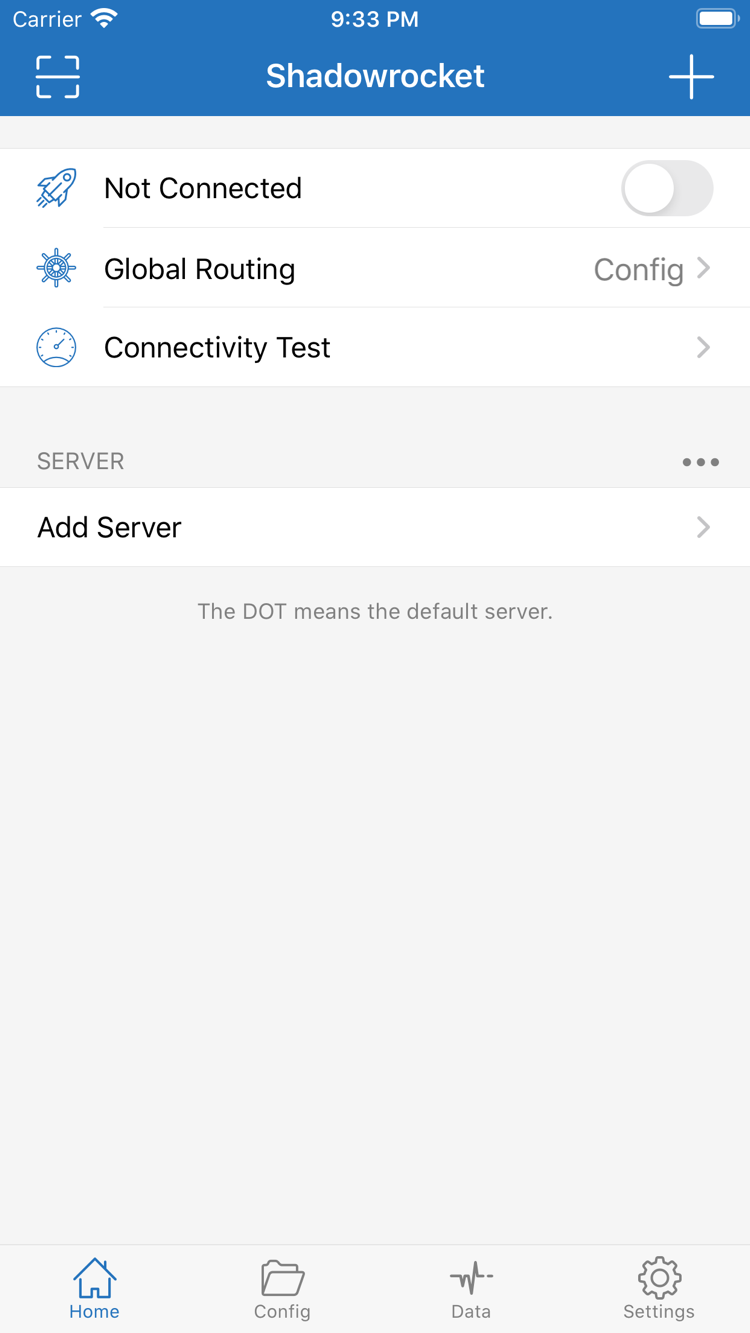
In Home, go to Add Server and select the Type that matches your existing details. To use a subscription, choose Subscribe and paste the complete link. To enter details manually, check the address, port, authentication, and transport settings one by one. Save, return to the list, confirm the entry appears, and select the server you want to test. If the list is empty, first check whether the subscription was retrieved successfully; do not jump straight to connection testing.
Scan QR Code can read a QR code containing a configuration you already have. After scanning, check the type and contents, and make sure the QR code comes from a trusted source. Do not overwrite a working configuration if you are unsure what the new one does, and do not share QR codes containing authentication details publicly.
-
Choose Config, Proxy, or Direct
For rule-based routing, choose Config and check which Config file is active. Proxy and Direct can help compare different handling modes, but they are not separate connections in the server list. Before testing, be clear about your goal: are you checking whether a server works, or whether a rule matches? These tests require different information, so do not combine them into a single conclusion.
If an imported configuration refers to specific policy names, make sure the corresponding items exist. Copying rule text without adding the referenced policies may produce unexpected results. See the quick reference for the meanings of DOMAIN-SUFFIX, FINAL, and DIRECT.
-
Turn on the connection and test a real request
Turn on the connection switch in Home and follow the system prompt to authorize the VPN configuration. Use Connectivity Test as an additional check. Then visit the destination you want to test and review Log for clues about how the request was handled. Connection status, test results, and the destination’s response are different kinds of evidence. An enabled switch only shows that the connection process has started; it does not prove that routing and DNS are correct.
If a test fails, note what happened and check the server parameters, authentication, DNS, and rule match in that order. Change one item at a time and repeat the same test, recording whether the result changes. Traffic appearing in Data is not a substitute for verifying access; an increase in the traffic count does not mean the request succeeded.
Developer, icon, and app ID
Shadowrocket is a closed-source commercial app. Verify that you have the genuine app using details on its App Store product page, not a similar name, search ranking, or unverified description.
Verify the product page before purchasing
On the App Store product page, first confirm the name is Shadowrocket, then check that the developer is Shadow Launch Technology Limited and compare the icon with the official icon shown here. The id932747118 at the end of the product URL is the app ID. Check all three details; a similar name or icon color alone is not enough to verify the app. The download guide on this site brings these checks together so you can review them before purchasing.
A one-time purchase for the client app
The US storefront price is about $2.99 as a one-time purchase. Other storefronts show local currency; the price at checkout is the one shown on the App Store page and purchase confirmation screen. A one-time app purchase does not include a connection plan. App purchase and connection services are separate. After opening the app, you still need to import your own existing subscription or server details. This is the official website and manual. It does not provide, sell, or recommend nodes or subscriptions; it explains how to import and manage existing configurations and troubleshoot settings.
Restore your purchase and device configuration separately
On iPhone and iPad, use the purchase history for the relevant Apple ID to find the app. Check the App Store page for purchase eligibility. When switching devices or reinstalling, first make sure you are signed in to the original purchasing account, then check your purchased items. If the page shows a price instead of an option to redownload, check your account and storefront before buying again. After reinstalling, separately check your configuration backup, iCloud status, and existing subscriptions. Restoring the app does not create server details.
Store availability and account region
Whether the product appears in your storefront depends on what the App Store displays and your account region. If you cannot find it in search, check the official product page first, then review your account’s country or region and any messages from the store. Before changing your account region, read Apple’s guidance on your device and check requirements for your balance, subscriptions, and payment method. Being able to open a web page does not guarantee that your account can make the purchase; follow the in-store purchase flow for the final result.
Updates, system requirements, and settings review
Get and update Shadowrocket through the App Store. Check your device’s App Store settings to see whether automatic updates are enabled. Refer to the App Store page for system requirements. If an option appears in a different place after an update, look for it by its English name in the interface, then check your current configuration and connection results. Keep a copy before changing important settings so you can restore them without relying on memory to re-enter the details.
To check a purchase, read the purchase restoration guide. If the app opens but you cannot connect yet, go to the first connection tutorial. If you are unsure about the difference between Subscribe and Config, start with the quick reference so you do not mistake updating a subscription list for replacing a rules file.
Entering parameters, first connection, and migration
These articles focus on using the client. First identify whether your question is about protocol settings, purchase and connection, or restoring a configuration, then follow the relevant steps. Use your own existing server details when setting up a connection.
Trojan protocol guide: configuring Trojan server details in Shadowrocket
Learn how Trojan works and review the fields for address, port, password, SNI, and Allow Insecure. Match each setting to your existing server details; do not loosen certificate checks as a substitute for correct configuration.
Backup & MigrationBack up and restore Shadowrocket configurations when changing devices: iCloud sync and Config file export
Follow the checks for iCloud sync, Config export, and import, and learn how restoring a purchased app differs from restoring its configuration. Before migrating, confirm which backup to keep. After migration, check your servers, rules, and actual connection results.
Getting Started10 common Shadowrocket questions for new users: from App Store purchase to the first connection
Answers to common questions about verifying the app, the one-time purchase, importing subscriptions, and choosing Global Routing. Follow the steps in order: purchase, prepare a configuration, connect, and verify. If something fails, first identify which part of the process is affected.
If you already have a specific error, go to Troubleshooting. To understand an English setting name, use the settings guide to look it up.